
The appointments panel
On the right-hand side of the planning, you will find the appointments panel. This contains all the appointments that still need to be scheduled for the selected day.
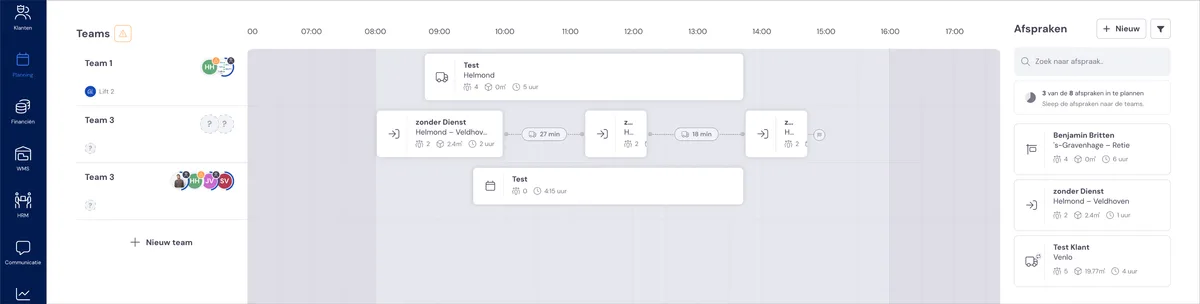
For each appointment, you can see:
The customer name
The loading and/or unloading address
The type of appointment (removal, delivering boxes, etc.)
How many employees are needed
The number of cubic metres
Whether the appointment has already been confirmed
At the top of the panel, you can see how many appointments still need to be scheduled. This number is updated as soon as you drag an appointment onto the timeline.
Searching and filtering
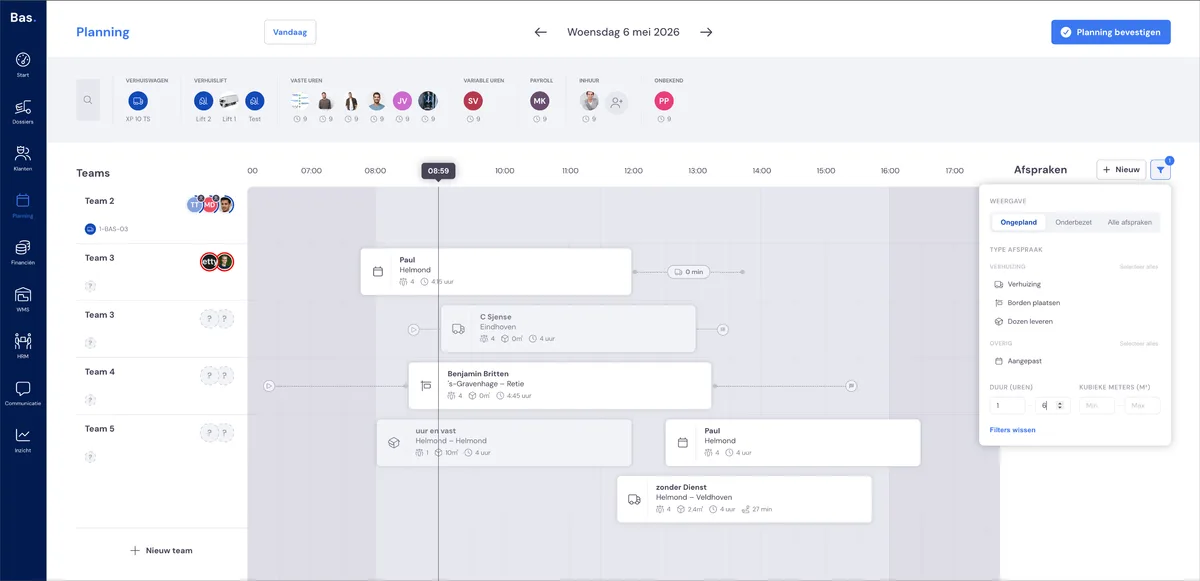
Do you have a lot of appointments in one day? Then use the search and filter function at the top of the appointments panel.
Searching — type a customer name, case file number, location or type of appointment. Only matching appointments are shown.
Filtering — filter by type of appointment, for example only removals or only box deliveries. You can combine searching and filtering.
If you drag an appointment onto the timeline while a filter is active, the filter remains in place. This way, you can quickly schedule several appointments of the same type.
Scheduling an appointment
Drag an appointment from the appointments panel onto a team's timeline. The appointment appears as a block on the timeline based on the planned start and end time.
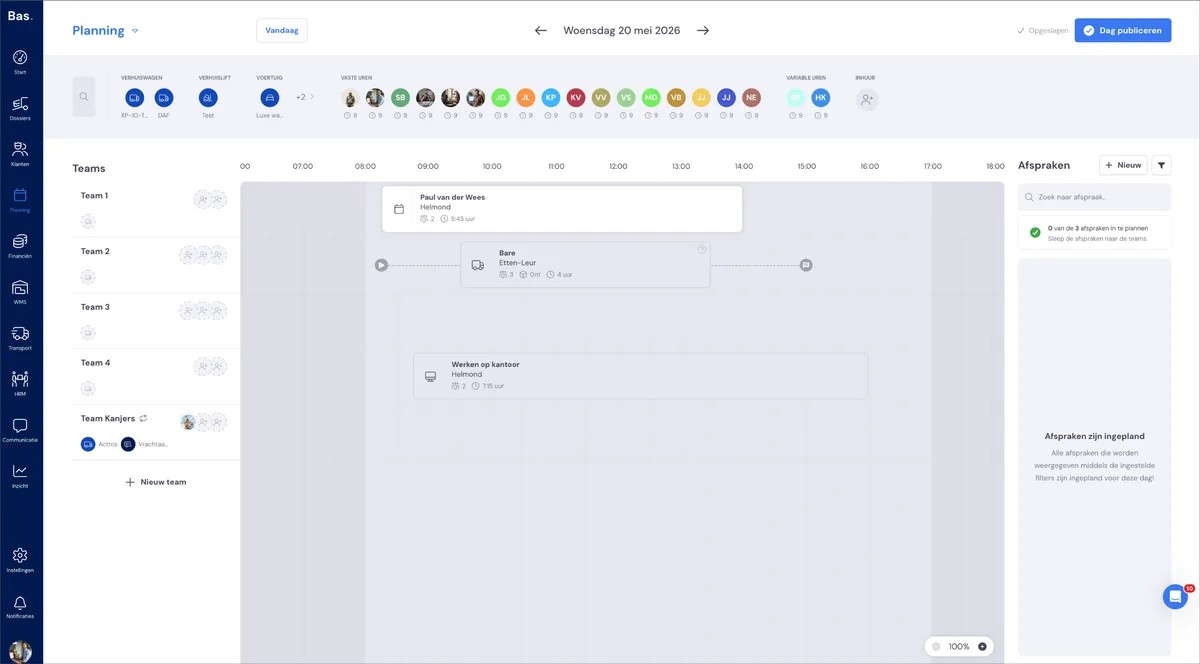
As soon as you release the appointment:
The appointment disappears from the appointments panel
The counter at the top of the panel is updated
The team's role requirements are recalculated — you can see immediately which roles are still needed
The travel times are recalculated
You can see that the appointment is still in draft: the appointment is transparent and its outline is dotted. The appointment remains a draft until you publish the planning for that day.
Scheduling recurring appointments
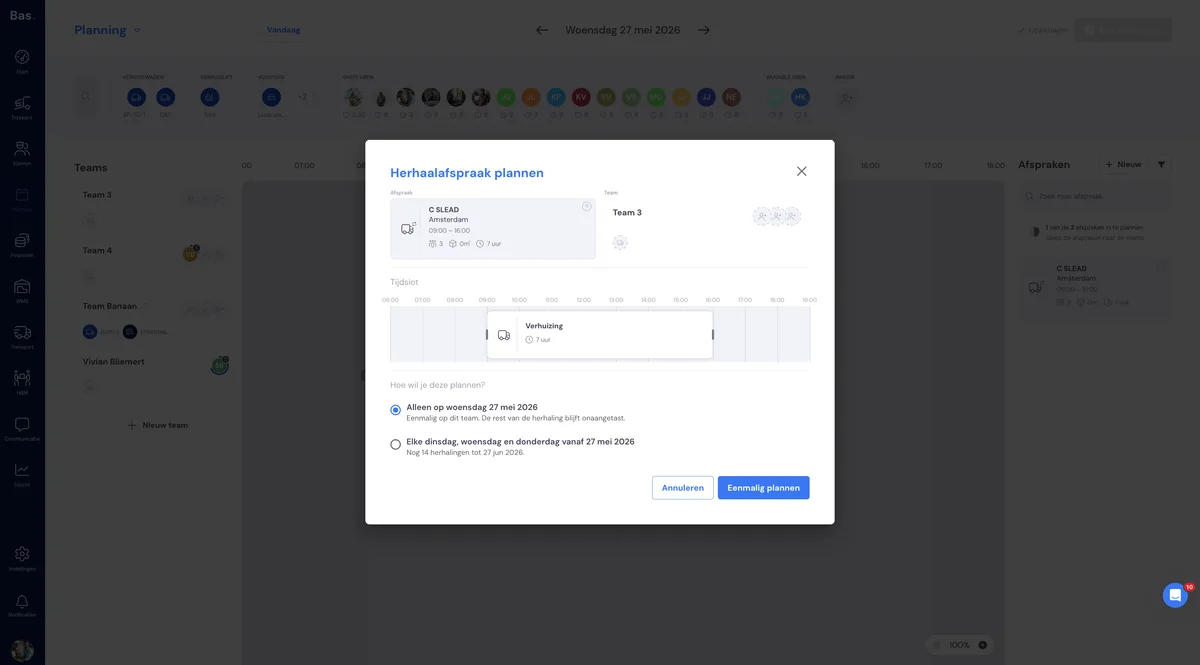
Some appointments return according to a fixed recurrence pattern, for example every week on the same day. When you drag such a recurring appointment from the appointments panel onto a team, the planning first asks how you want to schedule it.
You will see the window How do you want to schedule this? with two choices:
Only on {date} — the appointment is placed on this team for this one day only. The rest of the recurrence pattern remains untouched.
Every {weekday} from {date} — from this date onwards, the appointment is placed on this team every time it returns.
If you choose just one day, you can make a different choice for each day without it affecting the other days.
Extra help and team member
There are two ways to put an employee to work, and the difference is important:
Extra help — an employee you link to one specific appointment. That person only helps with that appointment, not with the rest of the team's work that day.
Team member — an employee who is permanently on a team. That person works on all appointments scheduled for that team.
You can also link an extra team to an appointment, for example if one job requires more people or a second crew. You can read how to do this in the article Timeline.
Returning an appointment
Decided you do not want an appointment with this team after all? Then drag the appointment back from the timeline to the appointments panel. All links with the team are disconnected — the employees and the vehicle remain on the team.
Moving an appointment to another team
You can also move an appointment from one team to another by dragging the appointment on the timeline to another team. The employees of the original team are then disconnected from the appointment.
Please note with a recurring appointment: if you drag a recurring appointment on the board or move it to another team, that change applies by default only to that one day. The rest of the series simply stays as it was.
Creating a new appointment
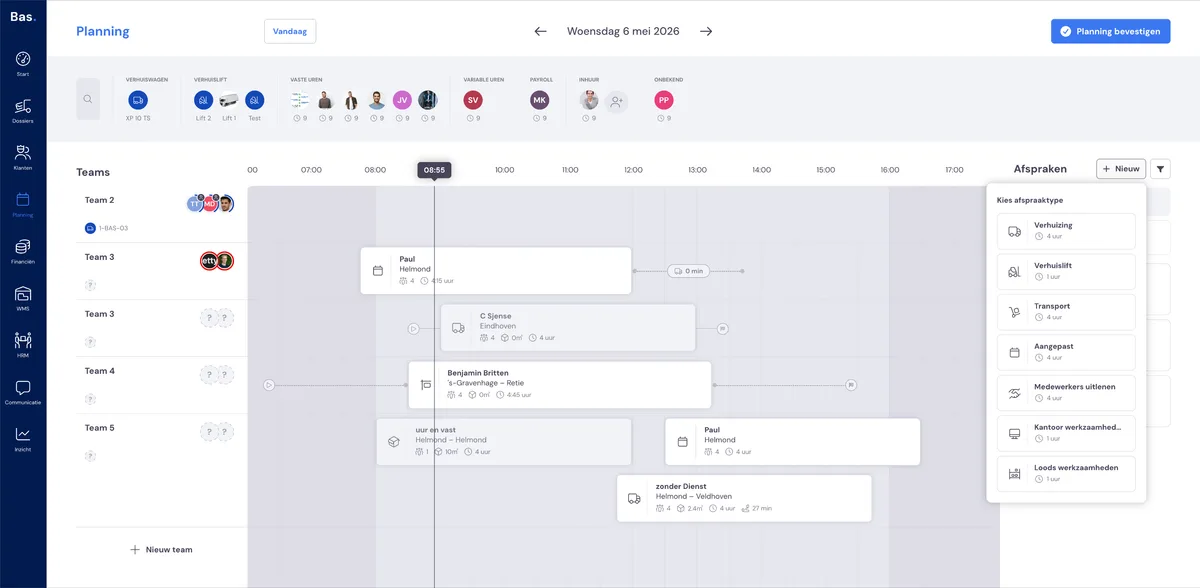
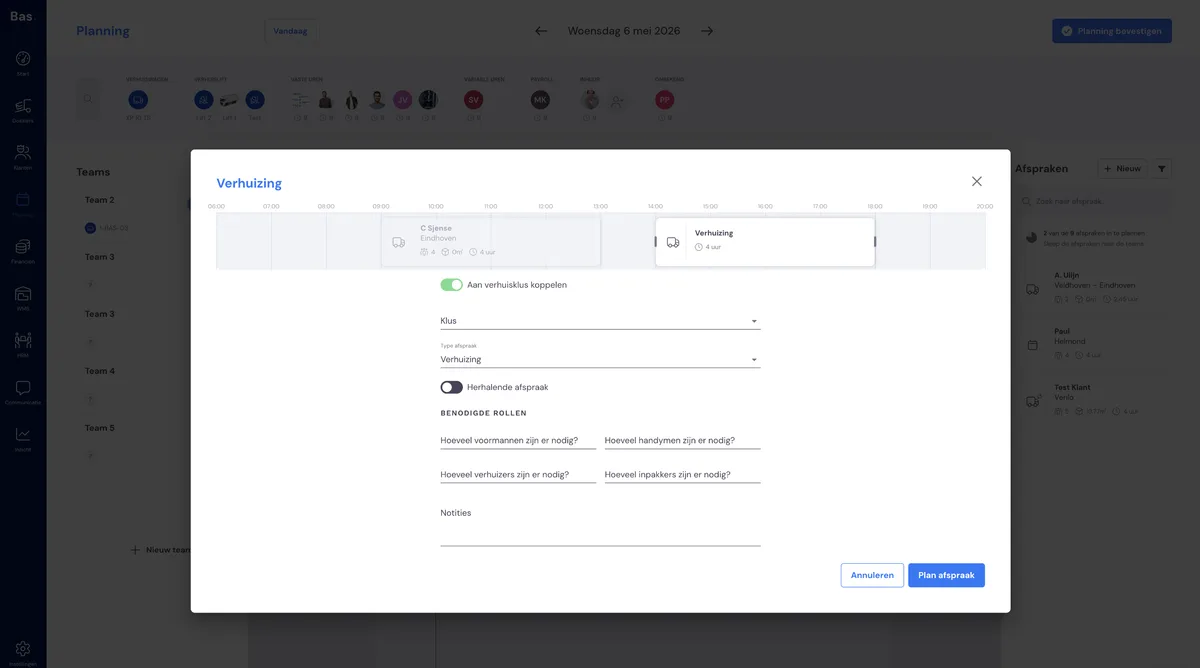
Do you want to create an appointment that is not yet in the appointments panel? Click + New in the appointments panel. The familiar form for creating an appointment appears. After creating it, the appointment is in the panel and you can drag it onto the timeline.
Read more
More about the new planning: