
Your planning is saved automatically
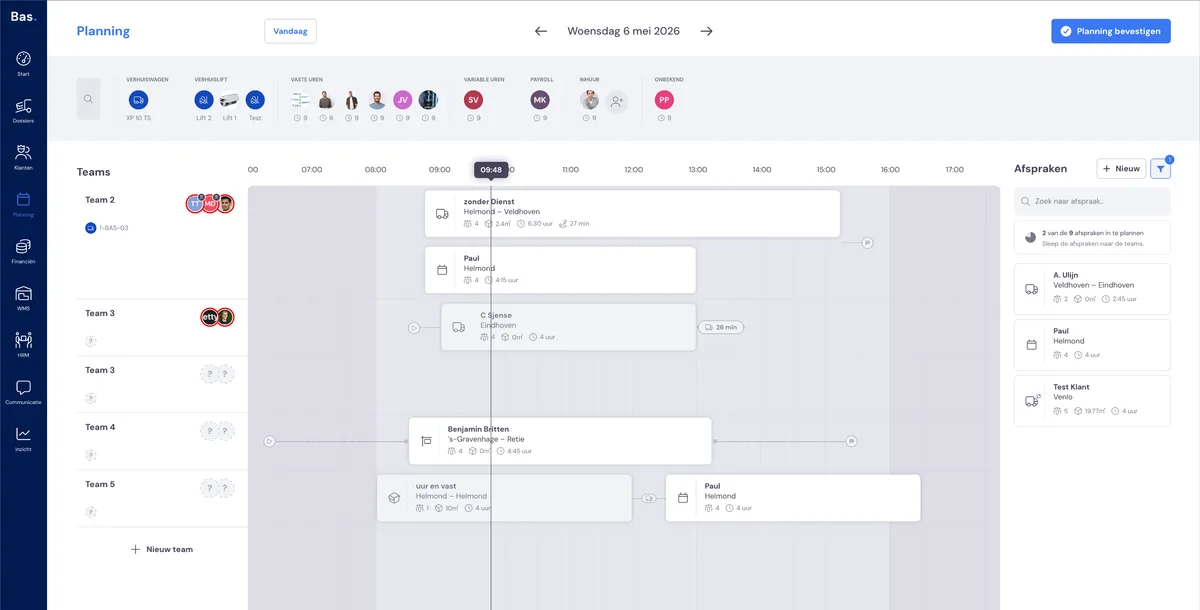
In the new planning, you no longer need to save anything. Everything you do — putting teams together, scheduling appointments, adjusting times — is saved automatically and continuously. You will briefly see Saving… and then Saved. So there is no Save button.
Important: automatic saving does not mean that employees and customers see your changes immediately. You can build up your entire planning at your leisure. Only when you publish a day does the planning become visible to your employees and are the customer emails sent.
Publishing the day
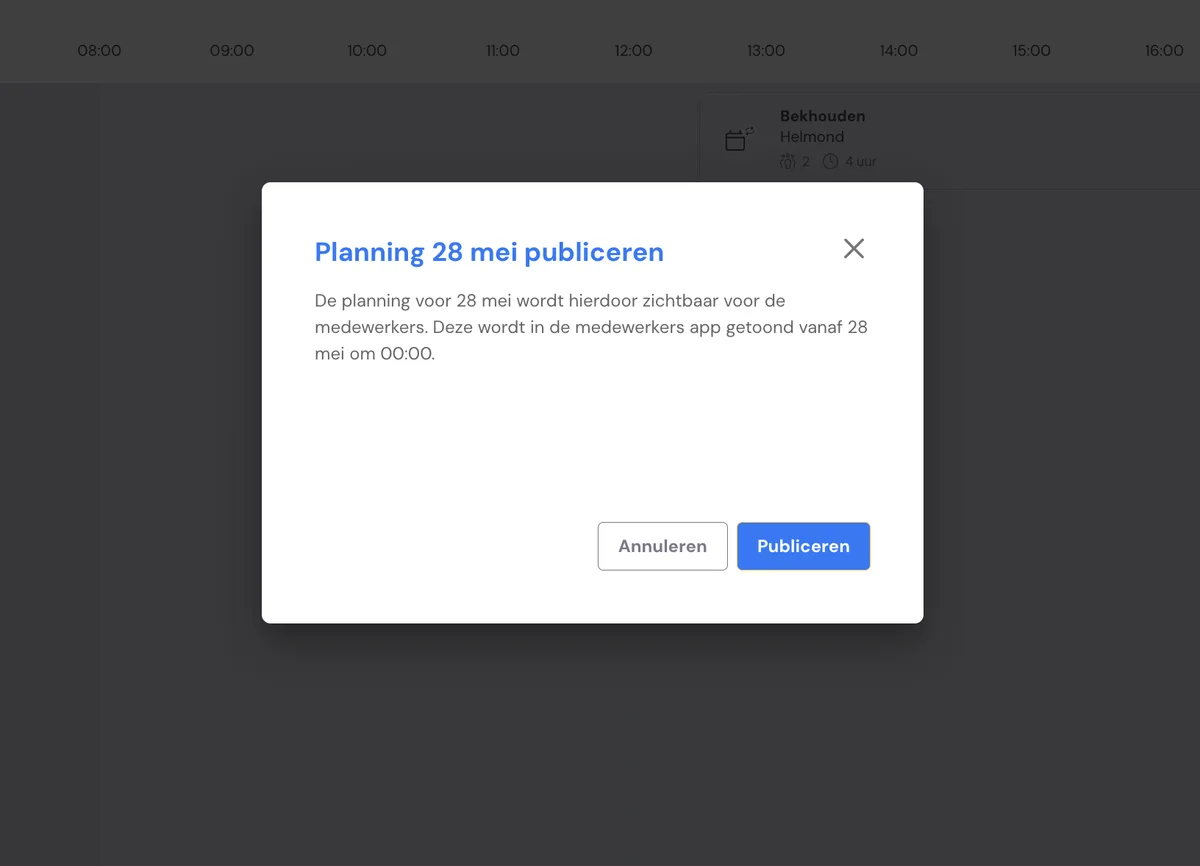
At the top right of the planning is the Publish day button. As long as you do not publish, your work remains visible only to you and your fellow planners. Only after publishing:
do your employees see the planning in their app;
are the customer emails you have ticked sent out.
This way, you decide the moment a day becomes final — for example, only once you have the whole day sorted.
What the publish overview shows
When you click Publish day, an overview appears first so you can see exactly what is going to happen. The overview shows:
the new appointments you have scheduled;
the moved appointments whose time you have changed;
how many customer messages are ready to be sent.
This way, you can calmly check that everything is correct before the planning goes out.
Deciding for yourself which emails the customer receives
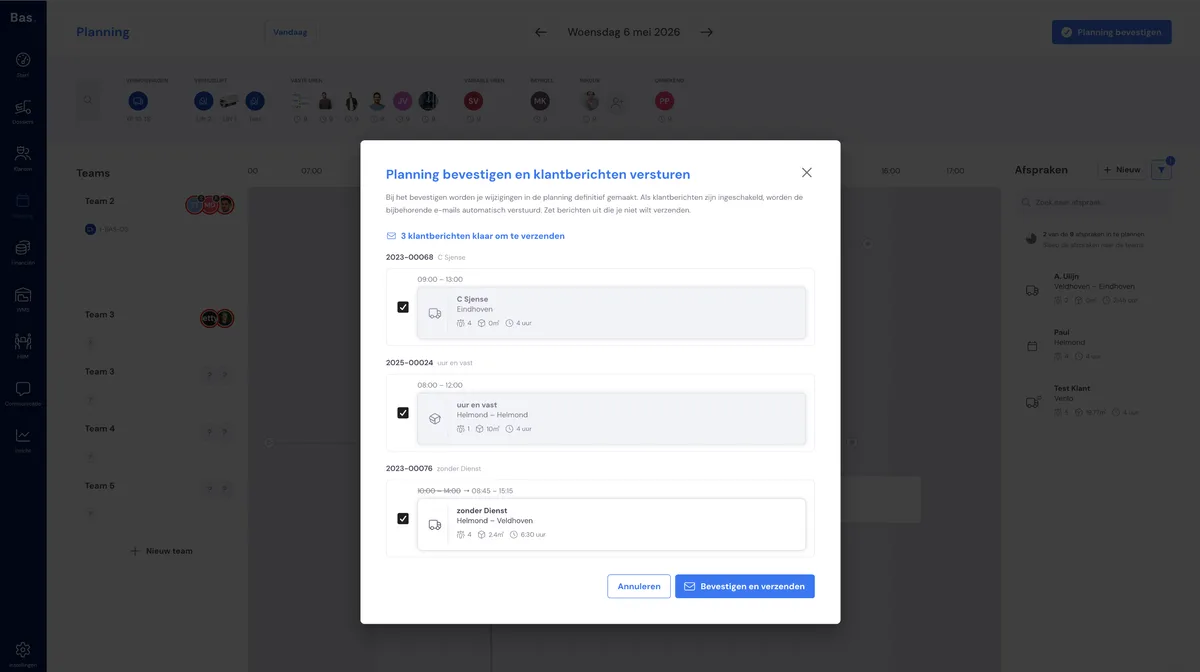
In the publish overview, you choose per email whether or not to send it. Emails are prepared when:
you have scheduled a new appointment;
you have changed the time of an appointment.
No email is prepared if you only change the team — the customer will not notice anything.
Examples of when this is useful:
You move an appointment to optimise your planning, but the customer's time does not change — then the customer does not need to receive an email.
You have already spoken to a customer on the phone about a change — an extra email is then unnecessary.
Unpublished changes
As long as there are changes you have not yet published, you will see the notification Unpublished changes. This is your reminder: your work has been saved automatically, but your employees and customers will only see it after you publish the day.
The notification disappears as soon as you have published the day and there are no outstanding changes left.
Working with multiple planners
If a colleague is working in the same day at the same time, you will get a conflict warning. This prevents you from accidentally overwriting each other's work. In that case, briefly agree who will finish and publish the day.
Read more
More about the new planning: