
Working with teams
In the new planning, you work with teams. A team is a group of employees with a vehicle who carry out the day's jobs together.
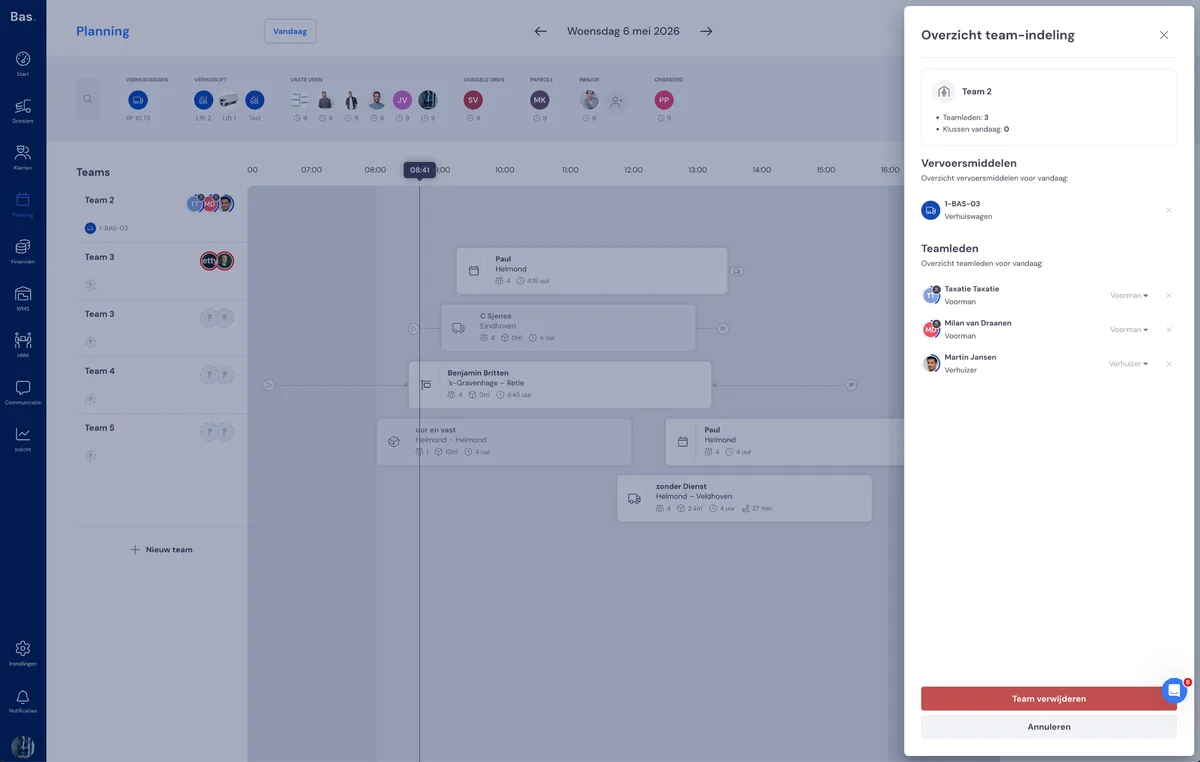
There are two types of teams:
Separate day teams — teams you put together yourself per day. They are automatically given a name: Team 1, Team 2, and so on. The next day, you start again with a clean planning.
Fixed teams — teams that return according to a fixed pattern on the working days you have set. You do not put a fixed team together again every day; it is simply already there.
You can create as many teams as you need.
Creating a team
Click the "+ new team" button to add a new team. An empty team appears, to which you can drag employees and a vehicle.
Deleting a team
A team can only be deleted if no appointments are linked to it. Are there still appointments scheduled for the team? Then first drag them back to the appointments panel or to another team.
Fixed teams
A fixed team is a team that keeps returning on the working days you have set. You do not have to rebuild it every day.
A fixed team has its own management page. There you arrange the composition, the working days and the vehicle.
You create a fixed team via a wizard that guides you through the settings step by step.
The team automatically appears on the working days you have set.
If you change something about a fixed team on the board — for example adding or removing an employee — the message appears: "This is a fixed team. You are only changing the team for today." The "Manage fixed team" link takes you to the management page for structural changes that apply to all working days.
A detailed explanation of creating and managing fixed teams can be found in the separate article Fixed teams.
Employees and vehicles
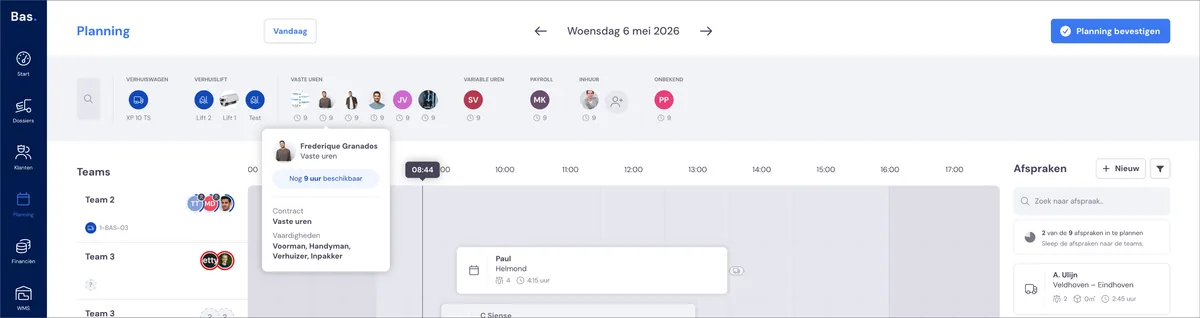
At the top of the screen is the resource bar. Here you will find all available employees and vehicles for the selected day.
Employees are grouped by contract type:
Permanent contract — employees in permanent employment
Variable — employees with a flexible contract
Hired — agency workers
Not available — employees who are off sick, on leave or unavailable for another reason
Next to each employee, you can see the available hours for that day. This is the number of working hours minus any absence.
Vehicles are on the left in the resource bar, grouped by type.
You can search the resource bar by typing a name. Employees or vehicles that do not match are temporarily hidden.
Adding employees to a team
Drag an employee from the resource bar to a team. The employee disappears from the resource bar and appears on the team.
When dragging, you choose a role for the employee: foreman, removal crew member, handyman, and so on. Which roles are available depends on the type of appointment linked to the team. For a survey appointment, for example, this is a surveyor.
Extra help and team member
You can put an employee to work in two ways:
Extra help — the employee is linked to one specific appointment. They only help with that one job and are not otherwise a permanent part of the team.
Team member — the employee is permanently on the team and takes part in all of that team's jobs for that day.
If you drag an employee listed under 'Not available' to a team, you will get a warning. You can still schedule the employee — the planning does not block you.
Removing employees from a team
Drag an employee from the team back to the resource bar. The employee reappears in the correct group in the resource bar.
Adding vehicles to a team
Drag a vehicle from the resource bar to a team. Each team has room for a maximum of two vehicles:
1 removal van (or small van, lorry, etc.)
Optionally 1 furniture hoist or trailer
A vehicle is always linked to the team, not to an appointment. If you move an appointment to another team, the vehicle does not go with it.
Removing vehicles from a team
Drag a vehicle from the team back to the resource bar. The vehicle is disconnected from all of that team's appointments.
Roles and role requirements
Every appointment has role requirements: which roles are needed to carry out the job? Think of a foreman, removal crew, a handyman or a packer. When you link an appointment to a team, you can see on the team which roles still need to be filled.
The role requirements are calculated automatically based on the appointments linked to the team. If a team has multiple appointments that do not take place at the same time, the team shows the maximum number of roles needed at any one time.
The capacity circle
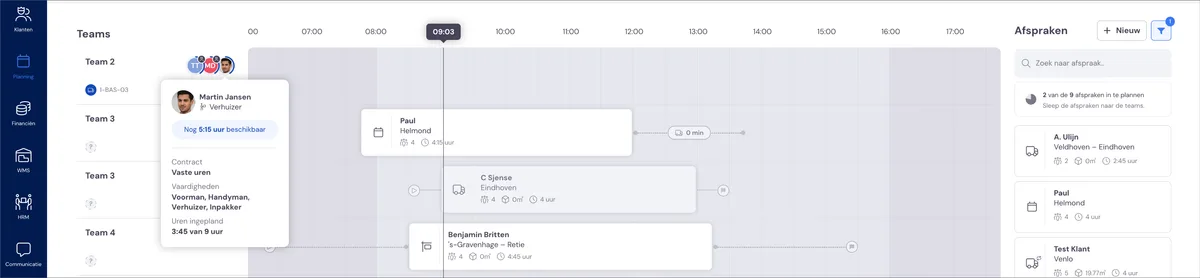
Next to each employee on a team, you will see a coloured circle around their photo. This shows how many of that employee's available hours have already been scheduled:
Blue — the employee still has room in the schedule
Green — the employee is nicely booked up for the day
Red — the employee is scheduled for more than the available hours
The circle is updated immediately with every change: when you add or move an appointment, or adjust the times. This way, you can always see whether an employee is scheduled too much or too little.
The planning does not block at a red circle — you always decide for yourself whether the staffing fits.
Read more
More about the new planning: