
If you store items for your customers, the storage module is suitable for you. You set up storage via the back office, and manage it day to day with the app. You'll find the module via WMS in the navigation.
What can I do with the Storage module?
Setting up warehouses and storage bays
Creating storage units in the form of crates, pallets, etc
Linking storage to jobs and customers, loading items, and charging costs
Easily keeping your storage up to date with the app
Warehouses and storage bays
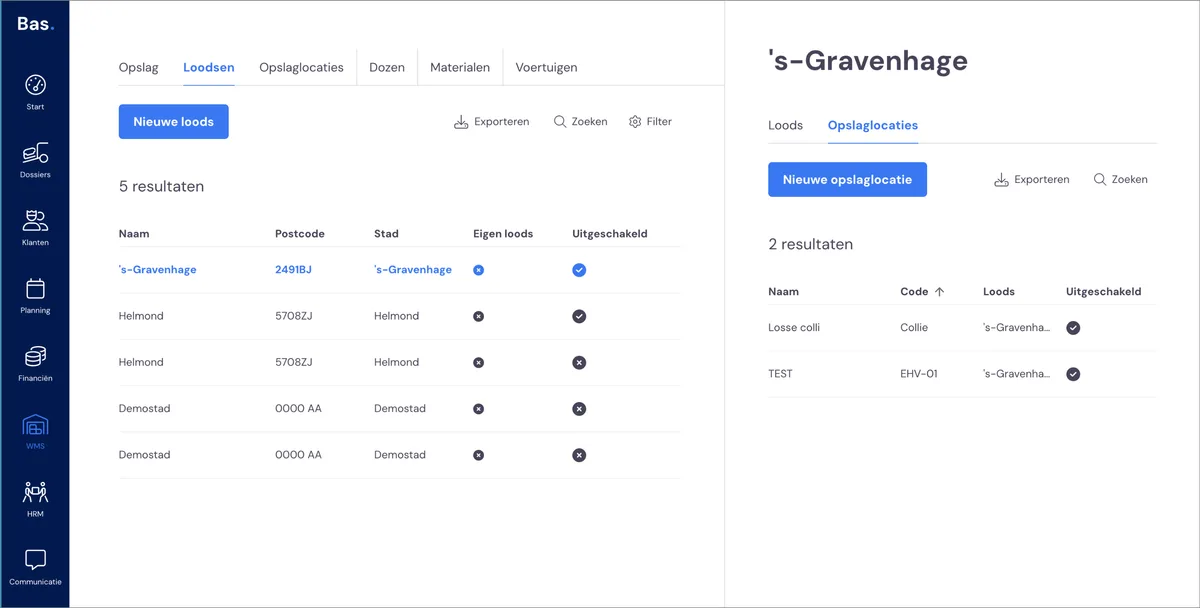
Warehouses and storage bays are the physical locations where storage takes place. You can create multiple storage bays within a warehouse, making it easy to find what you've stored in your warehouse.
We recommend introducing a system for your storage bays, for example using row numbers and bay numbers - this makes working with storage quick and easy.
Everything about managing warehouses >
Everything about managing storage bays >
Storage
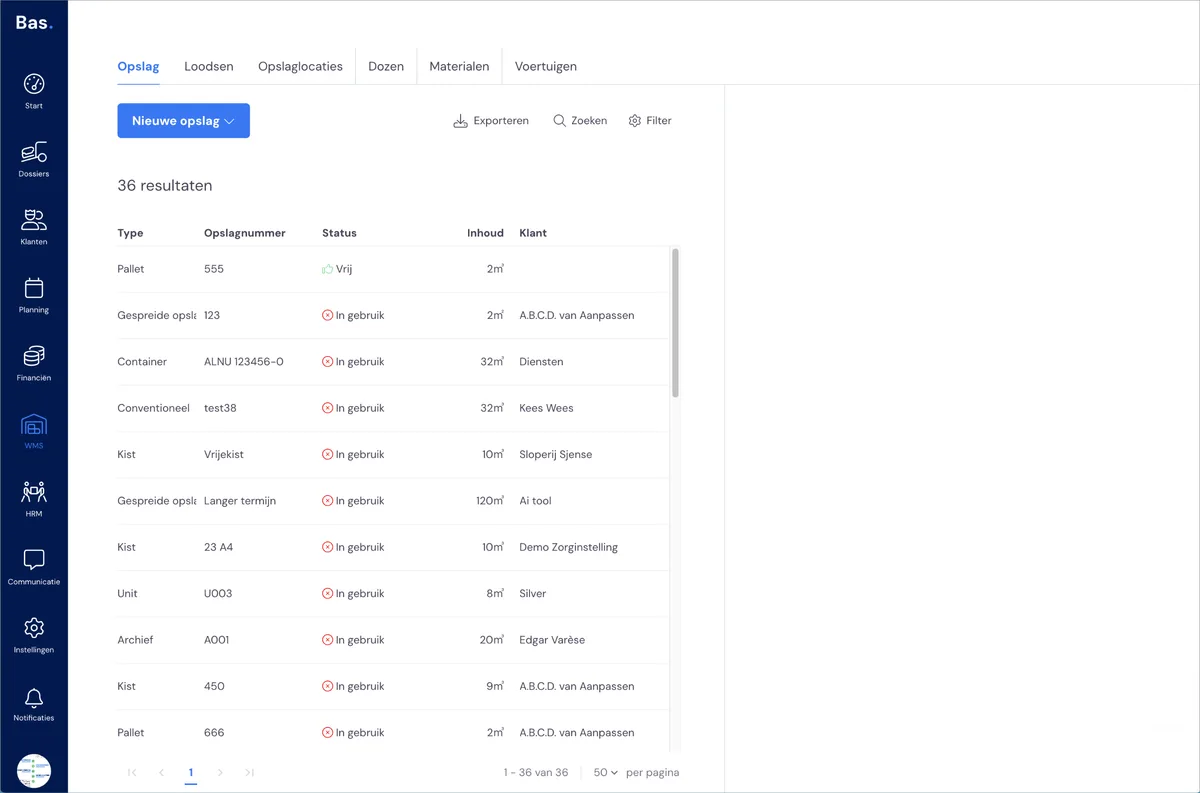
'Storage' refers to the crates, pallets, containers and other types of storage units you use to store items for your customers. Once you've created a 'storage unit', you can link it to a customer, load it with items and charge for the storage.
Everything about creating storage >
Linking storage to a customer, loading items, charging costs
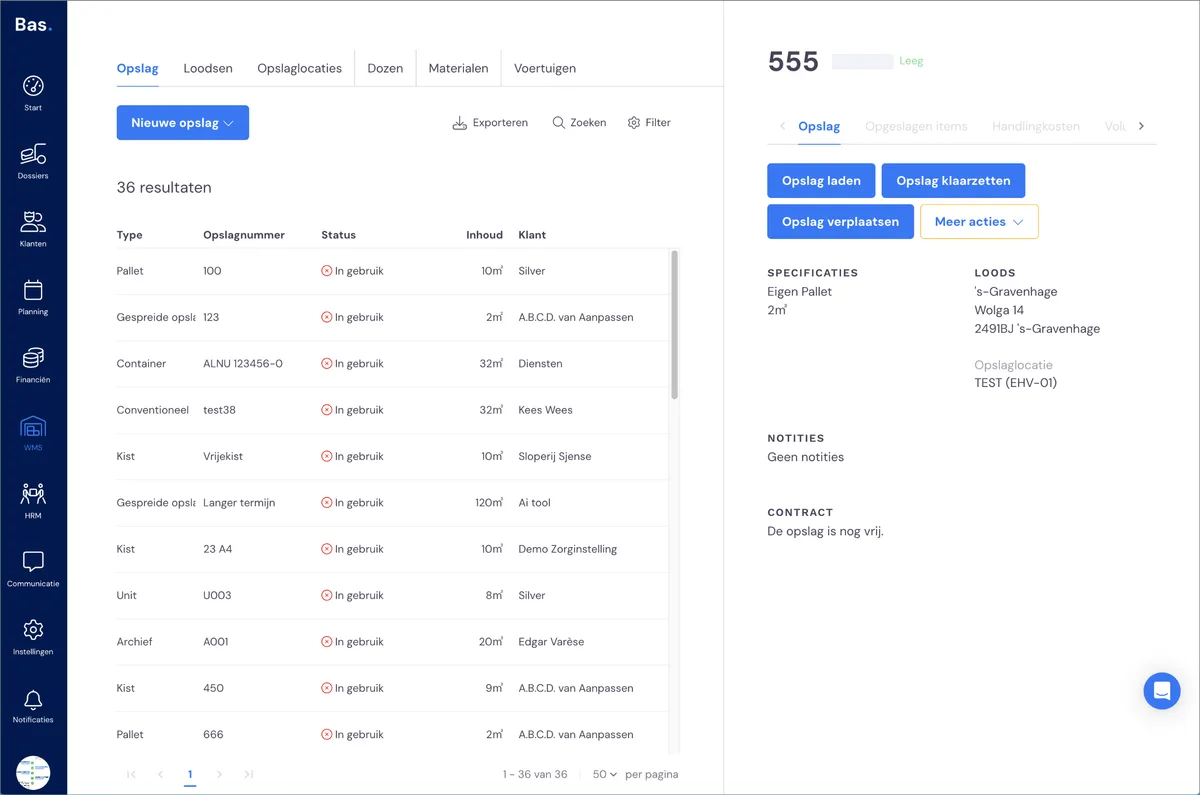
If you want to store something without it being part of a job, first click on a free storage unit. You then link a storage unit to a customer by clicking 'Load storage'. A wizard then guides you through the following steps:
Linking to a customer
Invoicing (period, based on volume, VAT, price, etc)
Loading items
Everything about putting storage into use without a job >
Storage in combination with a job
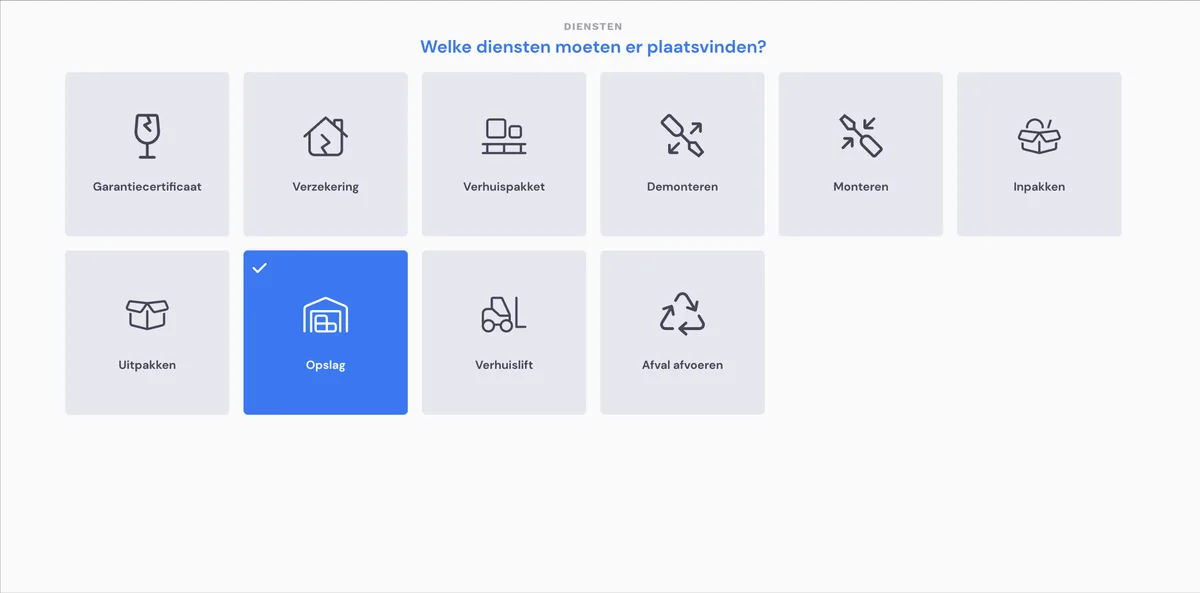
Once you've set up storage, you can add storage as a service to a job. The surveyor can already arrange this at the quote stage.
As surveyor, you tick the 'storage' service during the survey. In the following steps, you indicate which items need to be stored.
The total number of cubic metres is calculated. You then indicate how the items should be stored. The storage is reserved, the costs are charged and, when scheduling the job, you add the 'load storage' appointment. This means everything is ready for the job.
Everything about a job with storage >
Managing storage: loading and unloading, moving, releasing, removing.
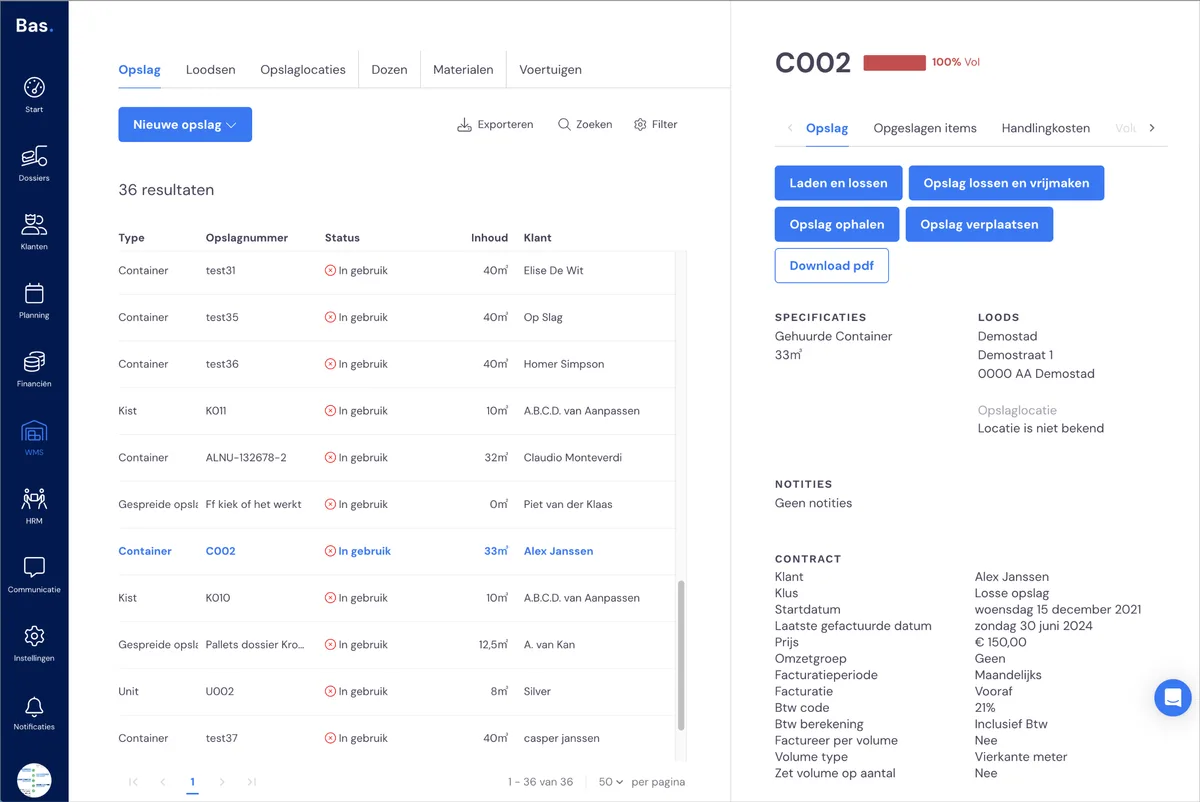
Once you've put a storage unit into use, you can keep it up to date via the back office.
Loading and unloading storage
Unloading and releasing storage
Moving storage
Collecting storage
Removing storage
Everything about managing storage >
Keeping storage up to date: with the app
You can manage the storage module using the user-friendly app. For this, storage units need to have stickers, so you can scan the storage units and storage bays; after which you can carry out the required action.
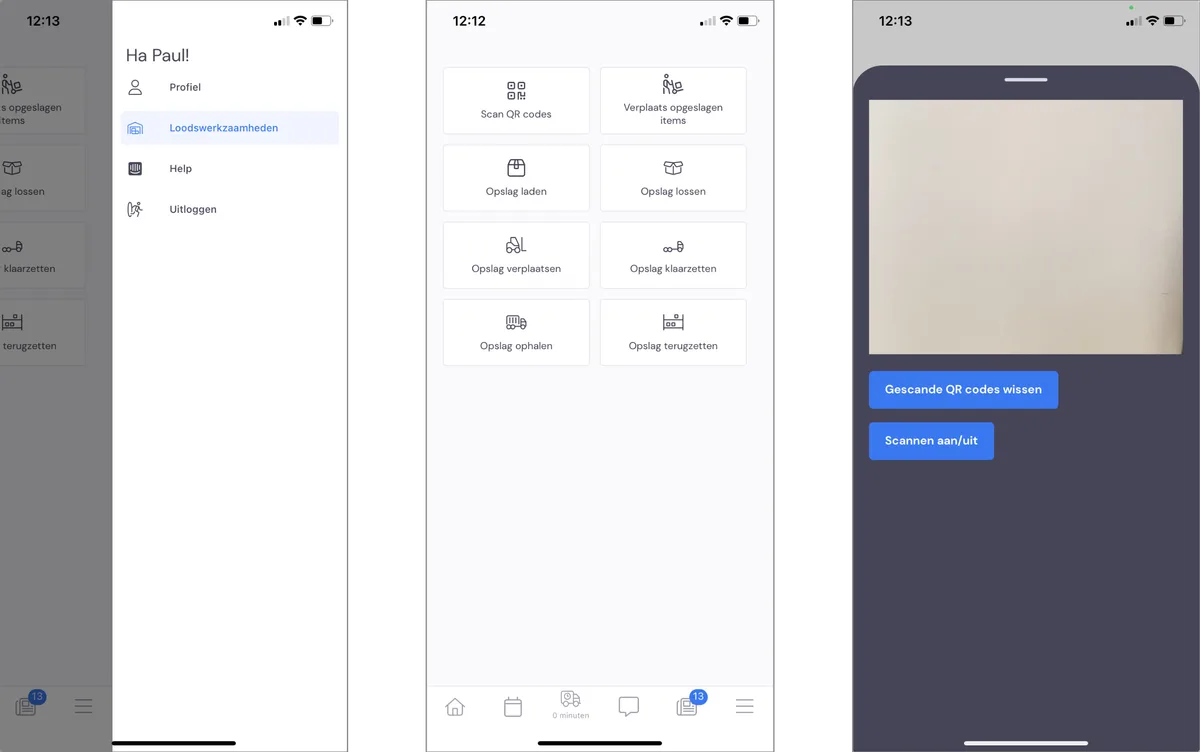
What you can do with the app:
viewing information about a storage unit
moving stored items
loading storage
unloading storage
preparing storage for collection
collecting storage